
Importing Items from the Library
Download a style, goal or preset from the StoryTable Library and import it into your own library.
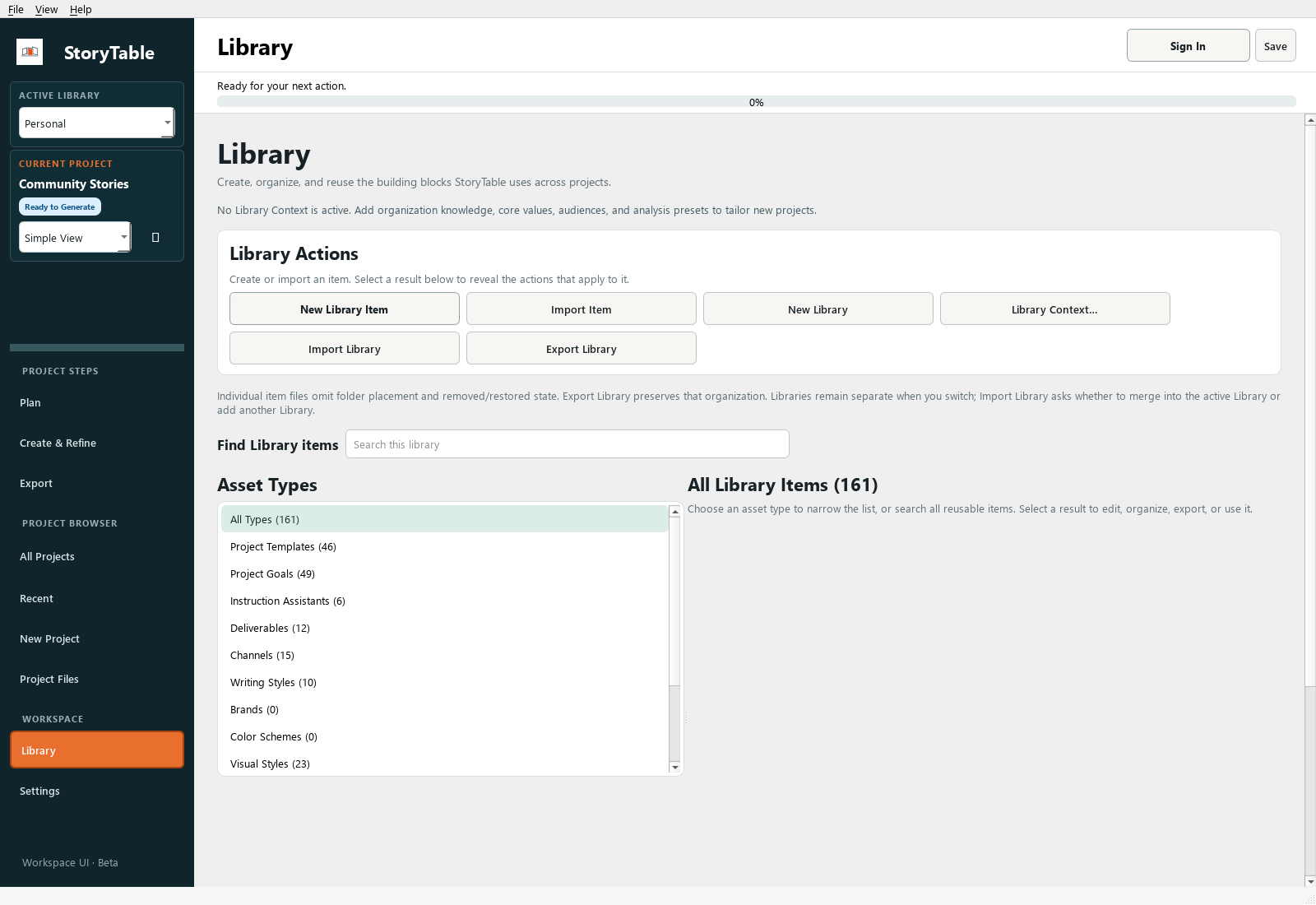
Bring a downloaded reusable asset into your local StoryTable Library.
1. Download the asset
Choose an item from the StoryTable website Library and download its ZIP. Extract the ZIP, then locate the included .storytable-asset file and README.
2. Open the app Library
In StoryTable, open Library and choose Import Item. Select the extracted .storytable-asset file in the file picker.
3. Select a supported file
Choose a .storytable-asset, .storytable-template, or .storytable-style file. A local Brand kit can use its kit.json file. Do not select an unrelated ZIP or rename a different file to one of these extensions.
4. Review the import
Follow the prompts, including any legacy asset-type choice. Check the imported item’s name, description, references, and settings in the library.
5. Use it in a project
Select the imported item in the relevant project setting or preset. Create a small sample and review the result before relying on it for a larger output.
Check your result
The imported item appears in the correct library category and can be selected in a project.