
Revising a Single Page
Change one slide or panel without touching anything else in the project.
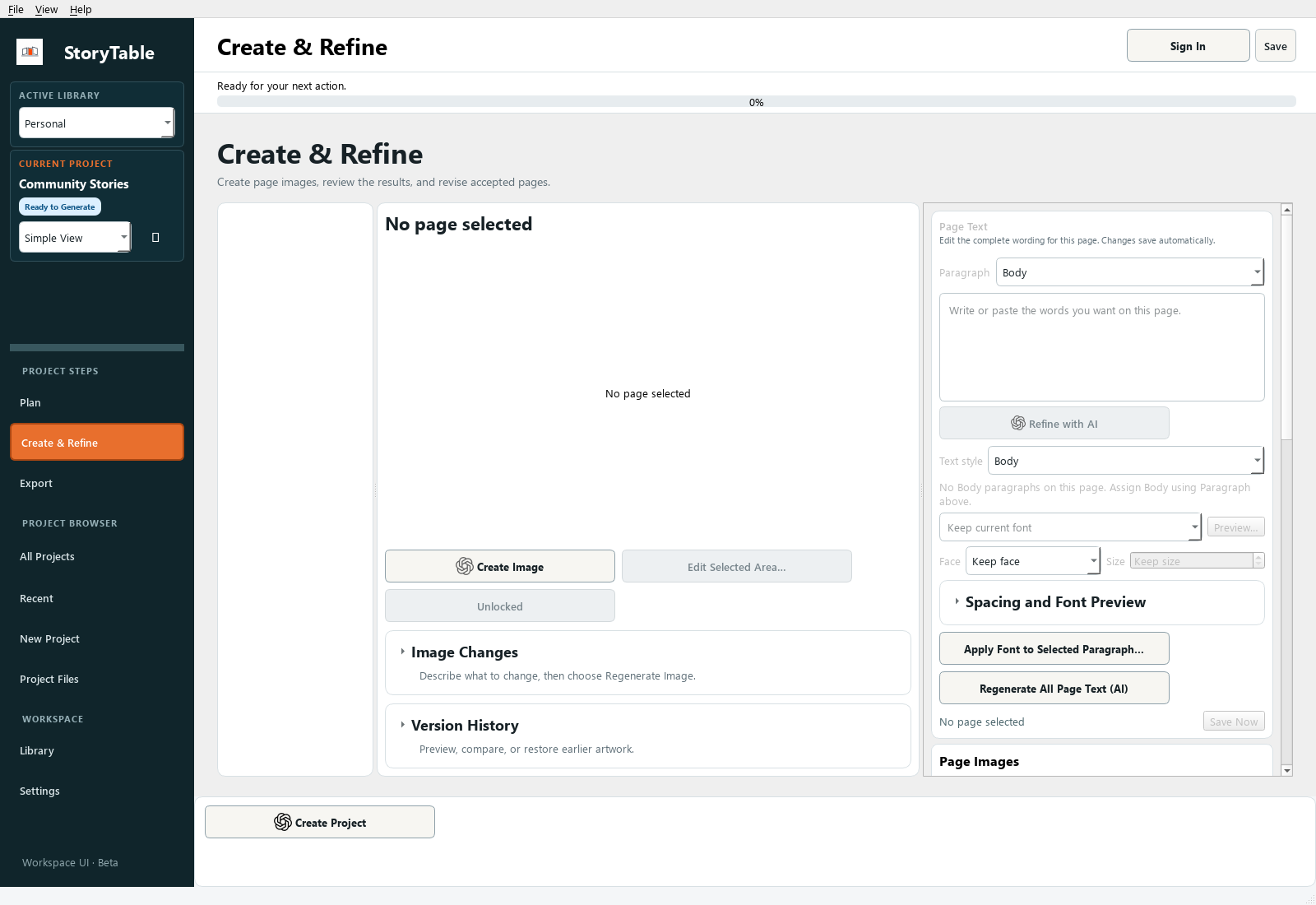
Make a focused correction while preserving the parts of the project that already work.
1. Select the target page
In Create & Refine, select the page you want to change. Confirm its preview and text before editing.
2. Choose the kind of change
For text, edit the selected page’s text or use Refine with AI with a precise instruction. For visuals, review Art Direction and describe the change you want in Image Changes.
3. Control the scope
Check which pages are selected before running an operation. Checked pages define Create Selected Images, and locked pages are skipped. Avoid project-wide commands when your intent is a single-page revision.
4. Refine the visual
Use the relevant image action for the selected page. Edit Selected Area… is available for focused image changes when an image is present. Compare the new result with the previous version.
5. Review and save
Check the revised page in sequence. Use Version History when you need to inspect earlier results, and Save Now when you are satisfied.
Check your result
The target page is improved, and the surrounding pages still provide the intended context and continuity.